Flows
The flow document
A flow is a document you write like a note, where every step is a cell that runs. The editor, the properties, the prose and the steps.
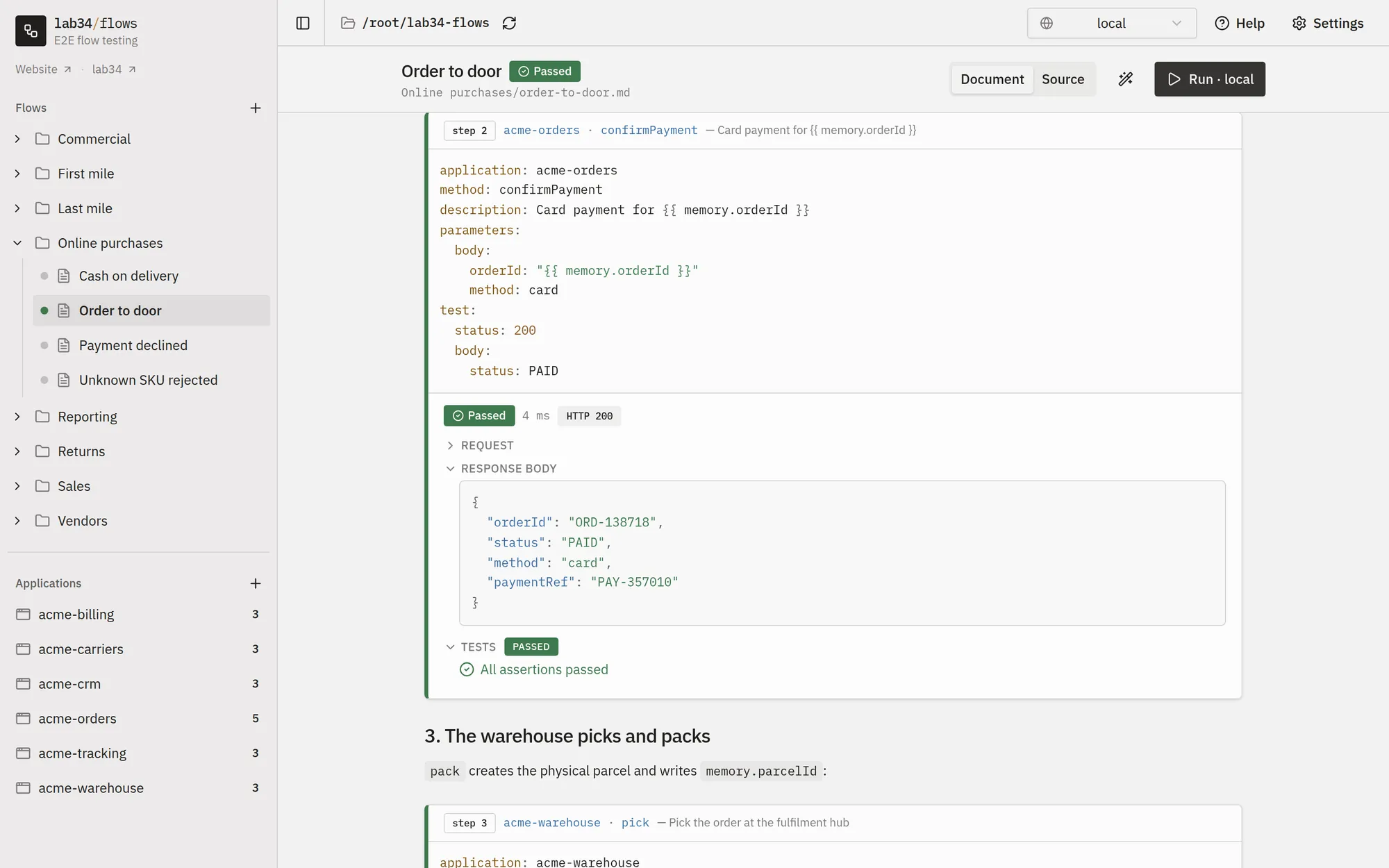
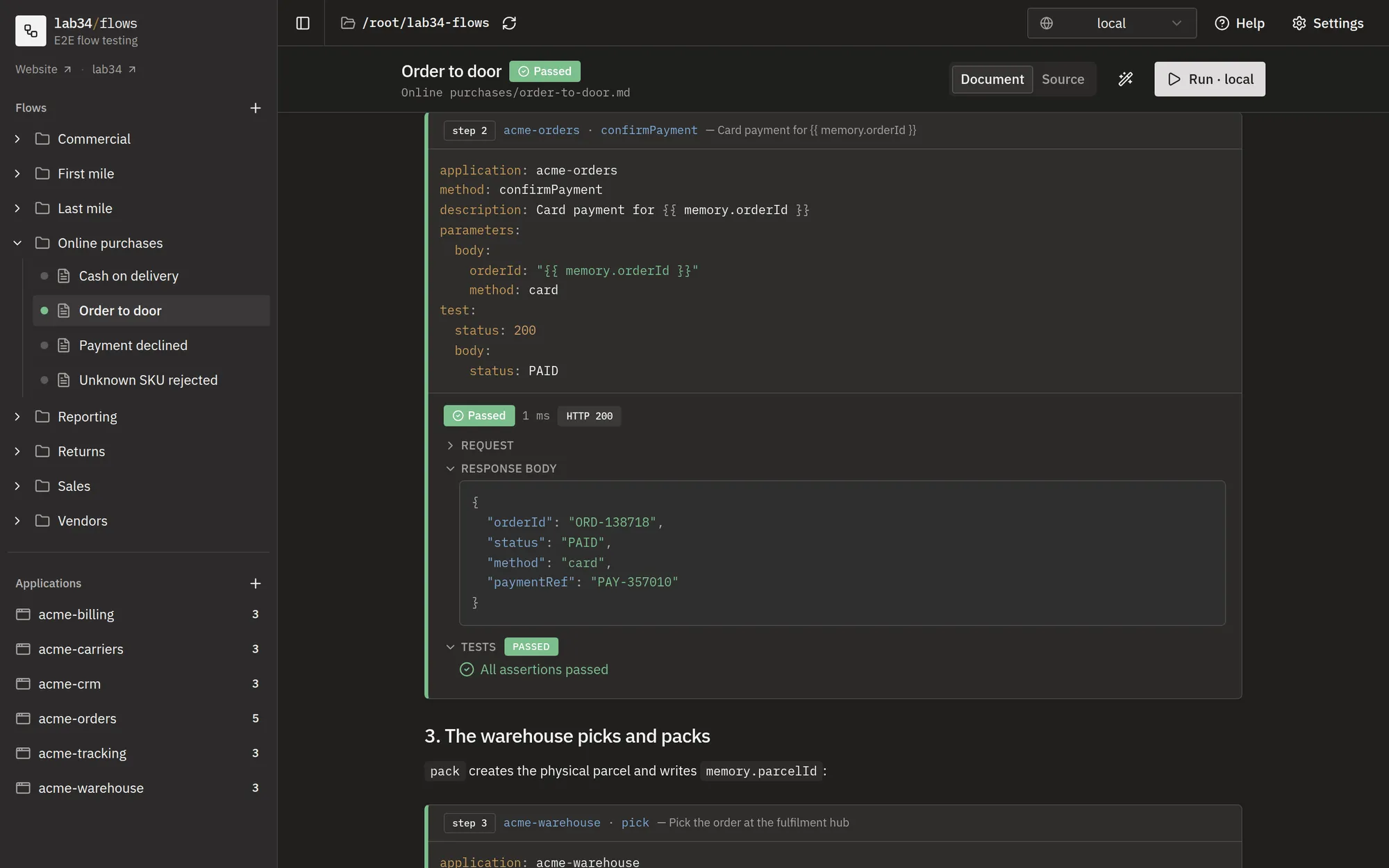
A flow is what you see below: a document with headings and prose, and among
them steps, each one a cell that runs against a real system and shows its
request, response and assertions right under it. You write it the way you
would write a note, in the Document view. What is saved underneath is a
Markdown file, .md or .markdown, under flows/ in the context folder.
Writing it
The Document view is where a flow is written. It is not a preview: click any paragraph, heading, list or step and that block shows its Markdown right where it was rendered, like Obsidian's live preview. Click elsewhere and it is rendered again. The Source tab opens the whole file in a plain Markdown editor, for when it is easier to work on the text as text.
There is no Save button. Every change is written to the file a moment after you stop typing; the toolbar says Saving… while the write is in flight and Saved once the file on disk matches the screen. Pressing Run saves first, because what runs is the file. Cmd/Ctrl + Z undoes and Cmd/Ctrl + Shift + Z redoes, one burst of typing at a time.
Between two blocks. Two steps in a row leave no line to click on. Move
the pointer into the gutter between them and an insertion line appears with a
+ in the margin: click it and a new block opens there. Cmd/Ctrl + Enter
does the same from the keyboard, below the block you are in, or above it with
Shift. An insertion point nobody writes in leaves the file exactly as it
was.
The / menu. Type / and a list opens with everything a flow can hold;
keep typing to filter it, ↑ ↓ to move, Enter to insert.
| Group | Entries |
|---|---|
| Flow | Step, step with parameters, step with assertions |
| Basic | Headings, bullet / numbered / task lists, quote, code block, table, divider, link, image |
| Callouts | Note, Tip, Important, Warning, Caution |
Nothing it inserts is special: they are Markdown templates, so /tip writes
the same > [!TIP] block you would have typed by hand.
| Key | What it does |
|---|---|
| Enter | Splits the block; inside a list it starts the next item, and an empty item closes the list. |
| Shift + Enter | A line break inside the same block. |
| Cmd/Ctrl + Enter | A new block below this one, above it with Shift. |
| Backspace at the start | Merges the block into the one above. |
| Delete at the end | Merges the block below into this one. |
| Backspace / Delete next to a step or a code block | Selects it; press again and it is gone. |
| ↑ ↓ ← → | Walk from block to block, into each one's Markdown. |
| Escape | Leaves the block without leaving the document. |
A step is edited as its YAML, inside its own cell: the header, the assertions and the execution output stay where they are while you type. The switch in the top-right corner of a step cell turns it off: the step stays in the document and the run walks past it.
The magic wand, next to the Document / Source toggle, rewrites the document from a description of the change. See Writing flows with AI.
What the document holds
Three ingredients: properties at the top, prose anywhere, and steps, the only part that executes. The Source tab shows them as text, which is also what a teammate sees in a pull request:
---
title: Fraud detection
description: A payment above the limit is held for review
owner: ana
tags: [smoke, payments]
---

# Fraud detection

The invoice endpoint must refuse to answer for a flagged customer.

> [!WARNING]
> This flow creates a real customer in the environment it runs against.

```step
application: accounting
method: getInvoice
parameters:
  params:
    customerId: "{{ randomInt0_100 }}"
test:
  status: 404
```
Properties
The Document view shows the properties as a list under the title: click a value to change it, a name to rename it, and Add property for a new one. Every key of the frontmatter is a property. A handful mean something to the tool, everything else is yours to invent.
| Property | Meaning |
|---|---|
title |
The document's heading. Without one, the first # heading is used. |
description |
The standfirst under the title. |
latentApplications |
MQTT clients to connect before the flow starts. See Latent applications. |
xray |
The Jira test this flow maps to, as xray: { testKey: ABC-1234 }. See Jira / Xray. |
version |
The runner version. Leave it out. |
| anything else | owner, tags, priority, reviewed, due… whatever your team filters and sorts by. |
Nothing declares a property's type: it is whatever its value is. A number
sorts numerically, true / false renders as a checkbox, a list renders as
chips and an ISO date sorts chronologically. A property can hold an object,
and its fields are addressed with a dot, xray.testKey. Properties are what
folder tables filter and sort on; see Organizing flows.
Prose: everything around the steps
Everything that is not a step is documentation, rendered as such. Use it to
say what the scenario covers, what has to be true before it runs and what to
look at when it fails. Headings, emphasis, lists, links, images, tables and
code samples all work, and the / menu inserts each of them. A code sample
tagged js, bash or anything other than step is prose too: only steps
execute.
A callout makes a note or a warning stand out. The / menu inserts one,
and in Markdown it is a blockquote opening with a [!TYPE] marker, the
syntax GitHub and Obsidian use:
Run it against staging first
The cancellation is real. Point the environment at staging until the assertions are stable.
Five types are available: [!NOTE], [!TIP], [!IMPORTANT], [!WARNING]
and [!CAUTION]. The body may span as many lines and blocks as you need, and
a title on the marker line replaces the default one. The same renderer draws
application READMEs and method descriptions, so all of this works there too.
Steps
A step names an application and one of its methods, the parameters to send, and what the response must look like. Steps execute in the order they appear in the document, and the request, response, assertions and timings of each one appear right below its cell once it has run.
Every key a step accepts is described in Step blocks. The parts a step builds on have pages of their own: Assertions, Passing data between steps, and Replacers for values that change on every run.
Running it
Pick the environment in the top bar and press Run. Before the first step, the tool checks that every application the flow uses has an env file for that environment, and refuses the run naming the missing files if not; the flow page shows the same warning as soon as the document and the selected environment disagree. The dot next to the flow in the sidebar follows the run: standby, running, ok, error.
Every run is recorded. What is kept, and how to read the report, is in Test runs.